
Before you start
- Microsoft 365 with Teams, and an admin account.
- Root on your 5dive server.
- One web address Microsoft can reach, forwarded to your 5dive server. A 5dive cloud server already has one.
Messages go only between Microsoft Teams and your server. Nothing passes through 5dive. 5dive never gets access to your Microsoft 365.
1. Make the bot
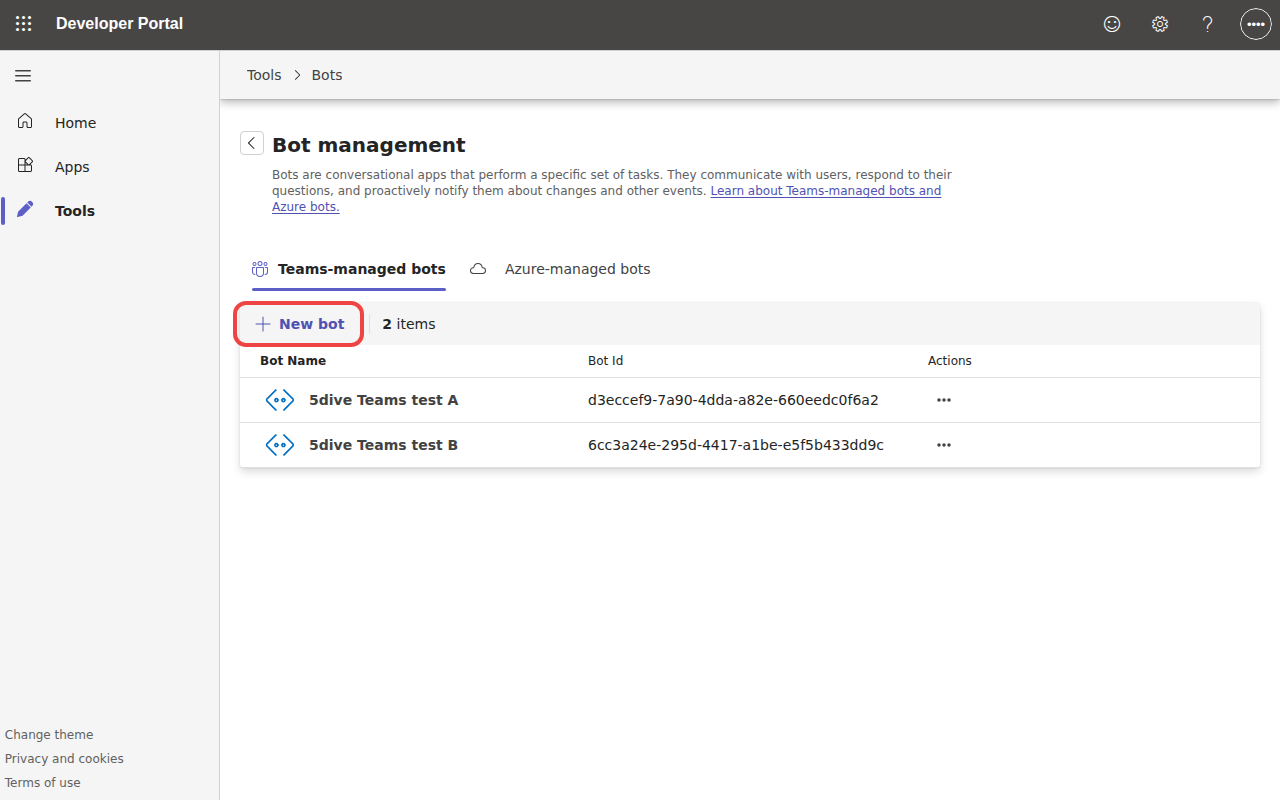
Open dev.teams.microsoft.com > Tools > Bot management. Tap New bot. No Azure subscription needed.
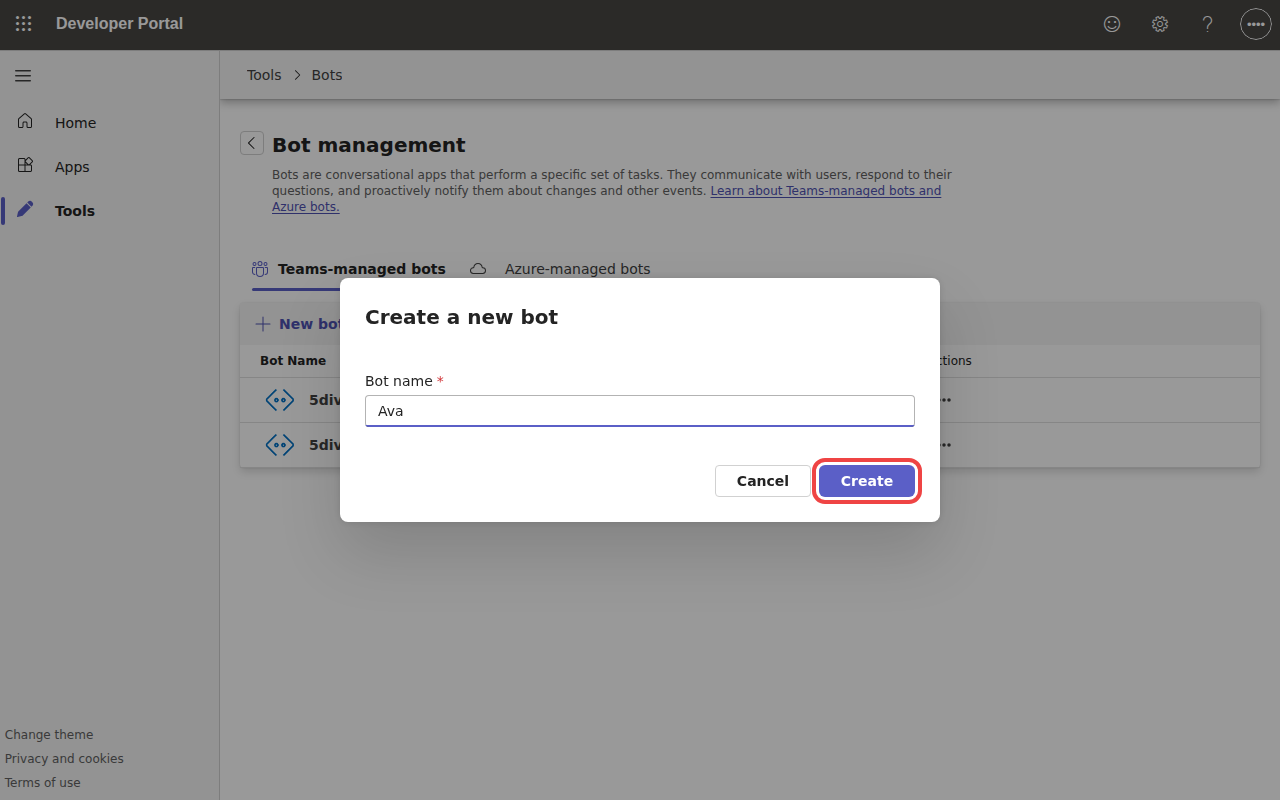
Name it after your agent, then Create.
2. Make its password
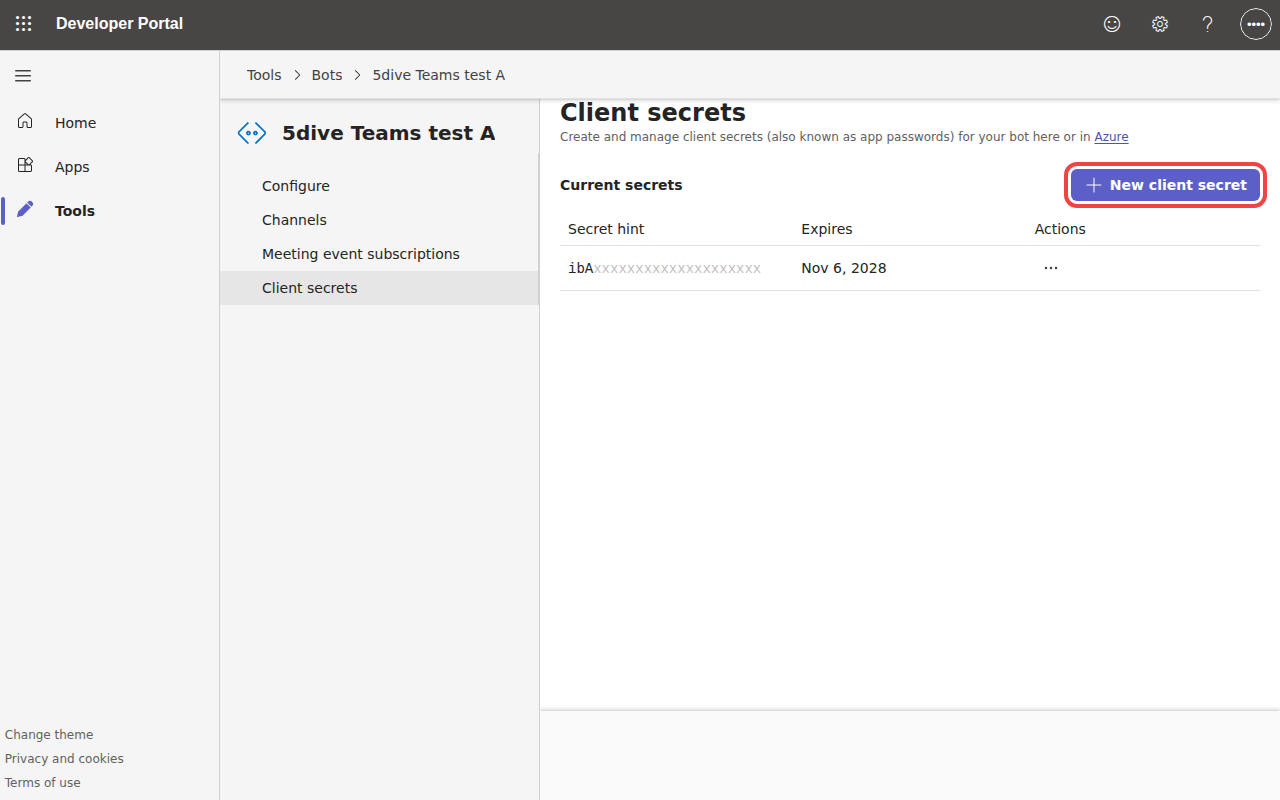
In the bot, open Client secrets > New client secret. Microsoft shows it once: keep that page open for step 4.
3. Copy two IDs
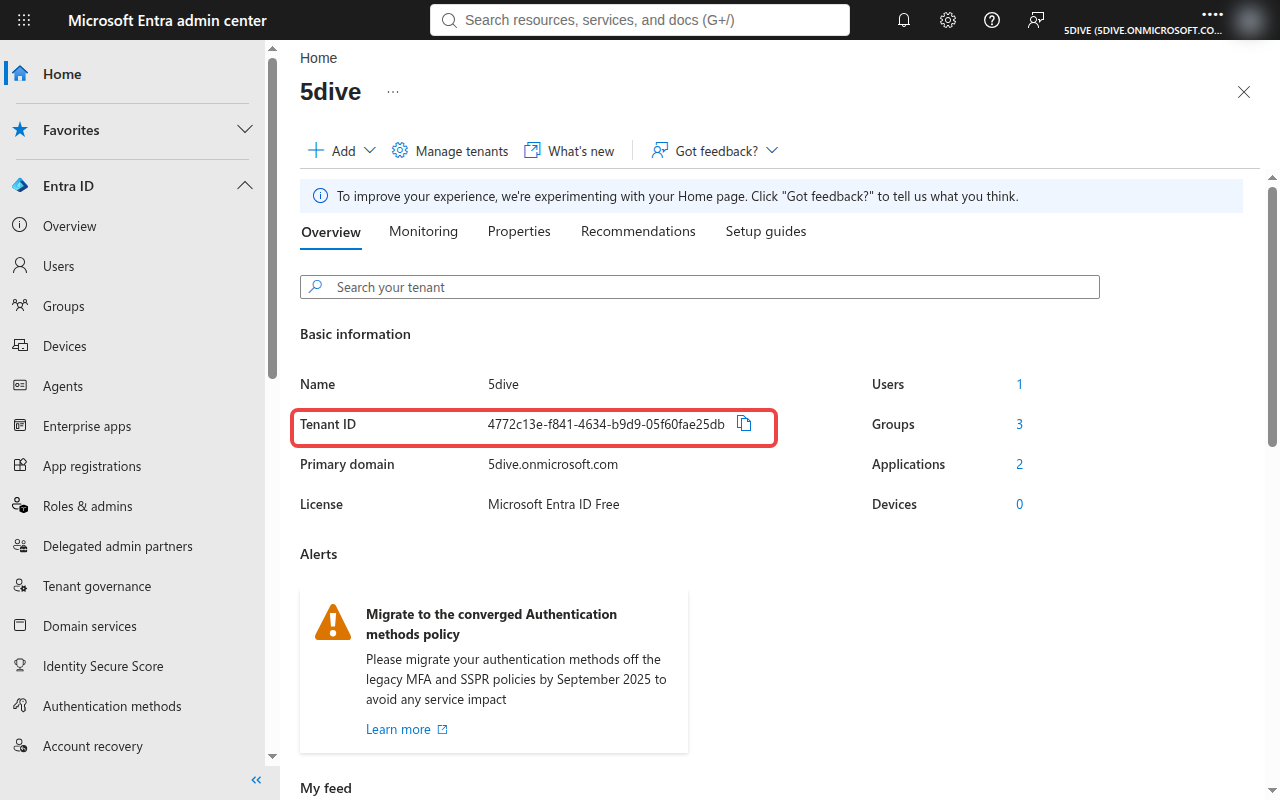
The bot ID is next to its name in Bot management (step 1). Your tenant ID is on the Microsoft Entra admin center home page.
4. Connect on your server
Save the bot’s password. It asks with hidden typing, so it never lands in a log:
sudo 5dive secret write TEAMS_APP_PASSWORD --connector=teams-<agent>Then connect, with the two IDs from step 3:
sudo 5dive agent teams connect <agent> --app-id=<bot ID> --tenant-id=<tenant ID> --endpoint=https://<your address>It prints the agent’s Endpoint and makes an app package (a small zip with its name and face). On a 5dive cloud server, leave out --endpoint: the address is made for you.
Fully offline server? Open Teams alone first: sudo 5dive config local-only allow teams. Everything else stays offline.
5. Point the bot at your server
In the bot, open Configure, choose HTTPS endpoint, paste the Endpoint from step 4, then Save.
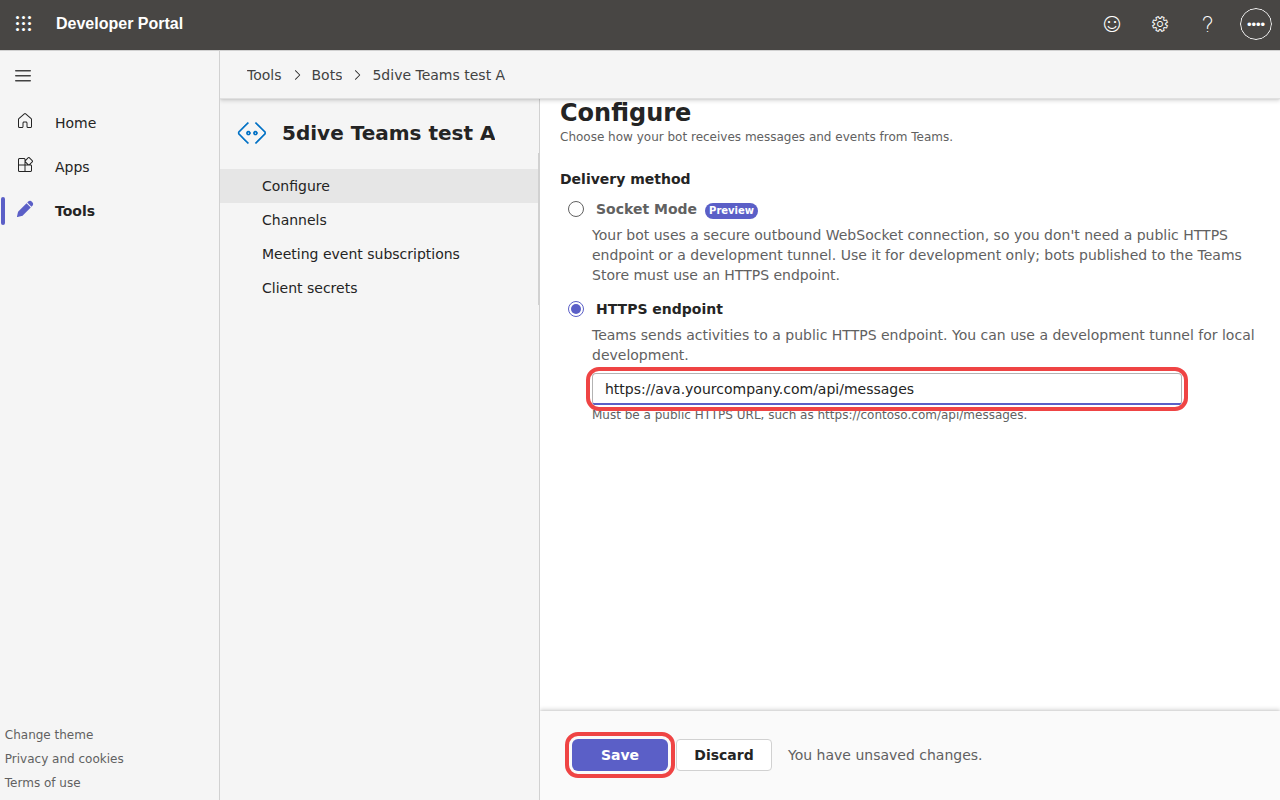
Every message is checked: Microsoft’s signature, your bot and your tenant. Anything else is refused.
6. Allow your own apps
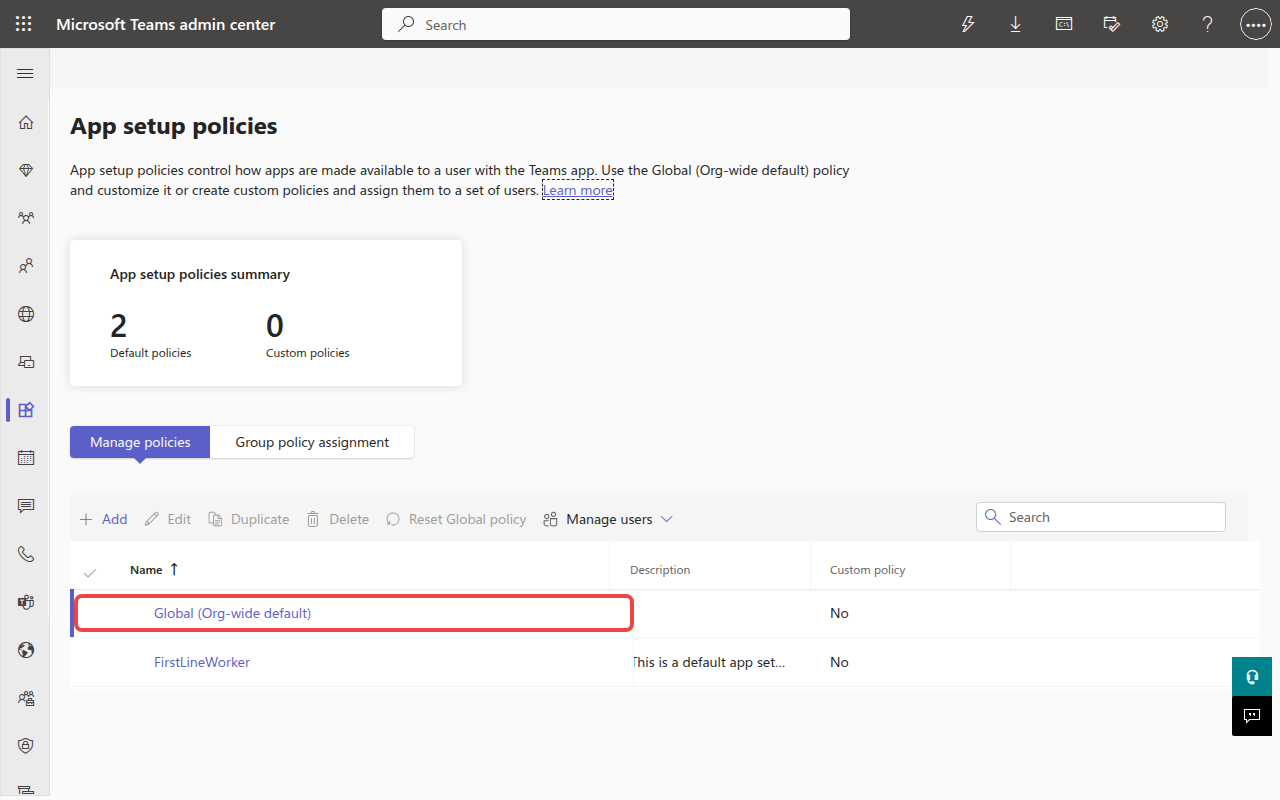
Open Teams admin center > Teams apps > Setup policies > Global (Org-wide default).
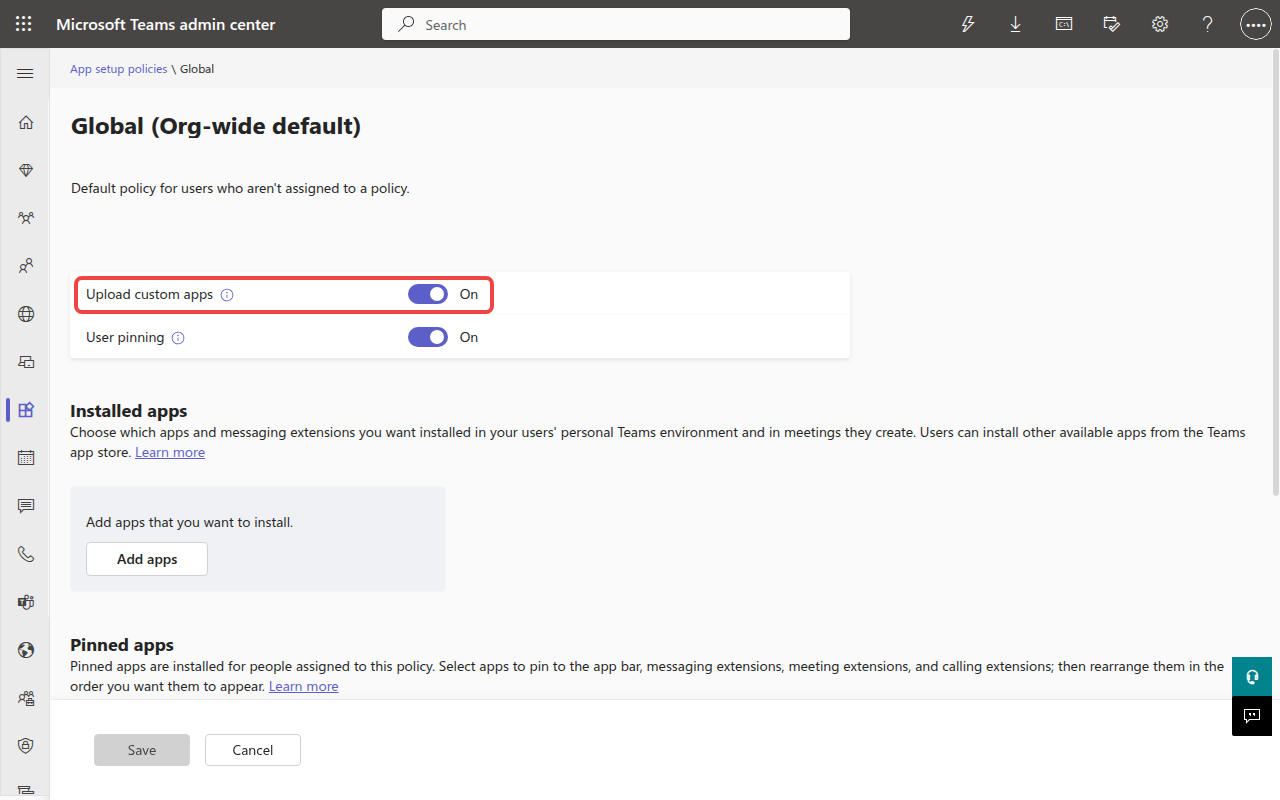
Turn Upload custom apps on, then Save.
7. Add the app to Teams
Teams apps > Manage apps > Actions > Upload new app, and pick the app package from step 4.
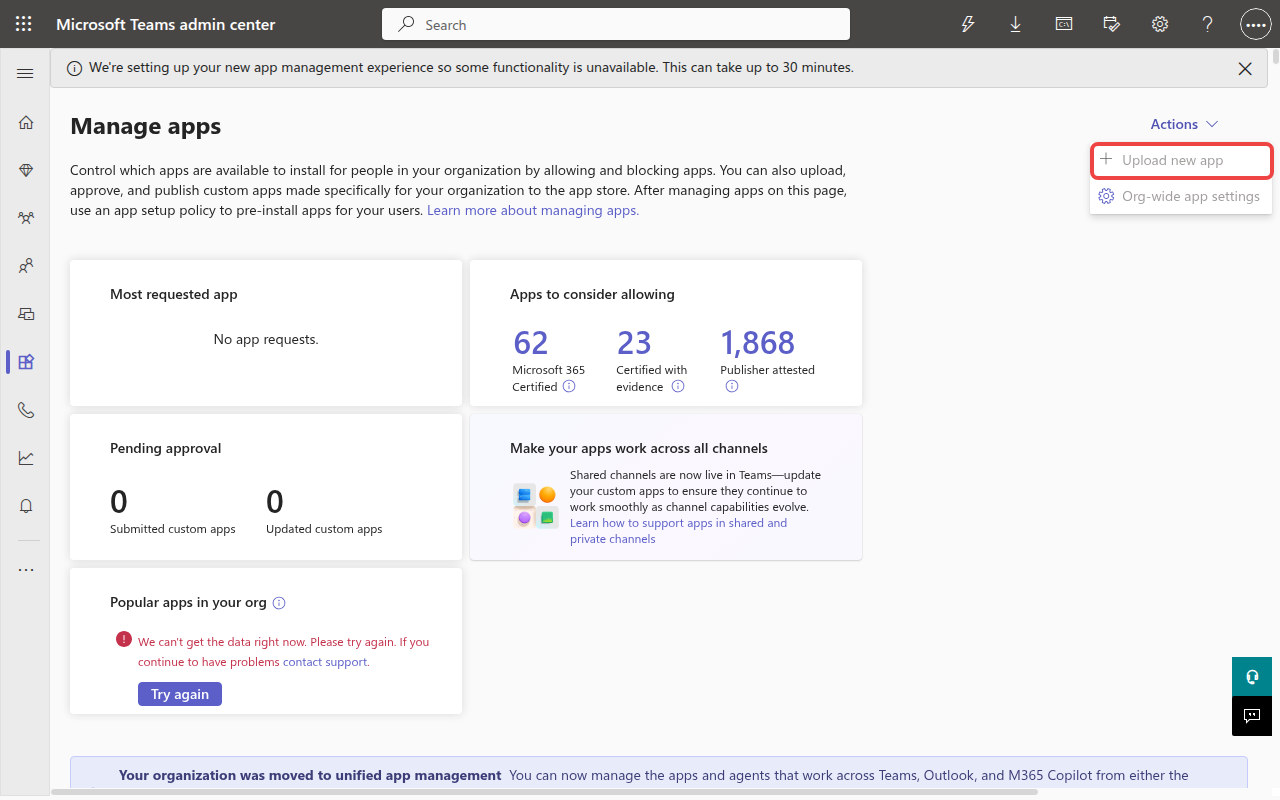
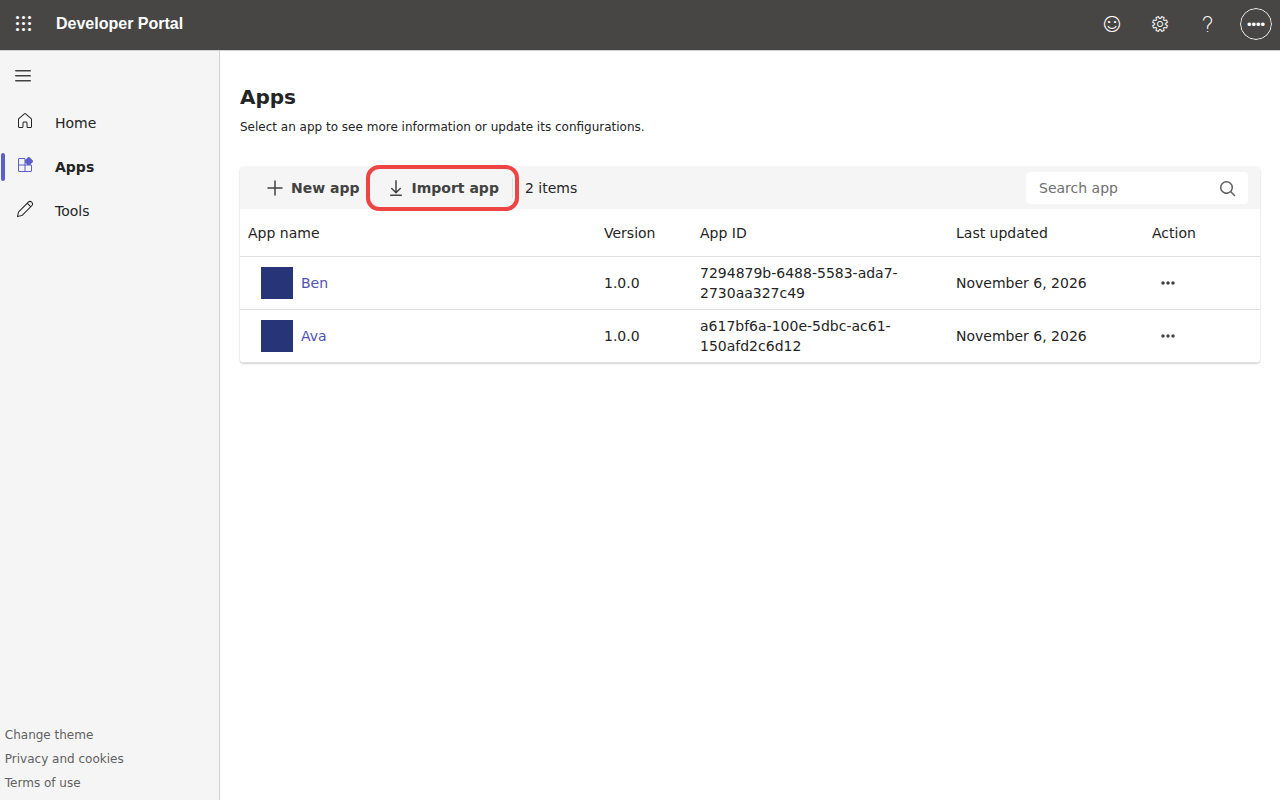
Greyed out? A new Microsoft 365 can take a while to allow it. Use the Developer Portal instead: Apps > Import app, pick the package…
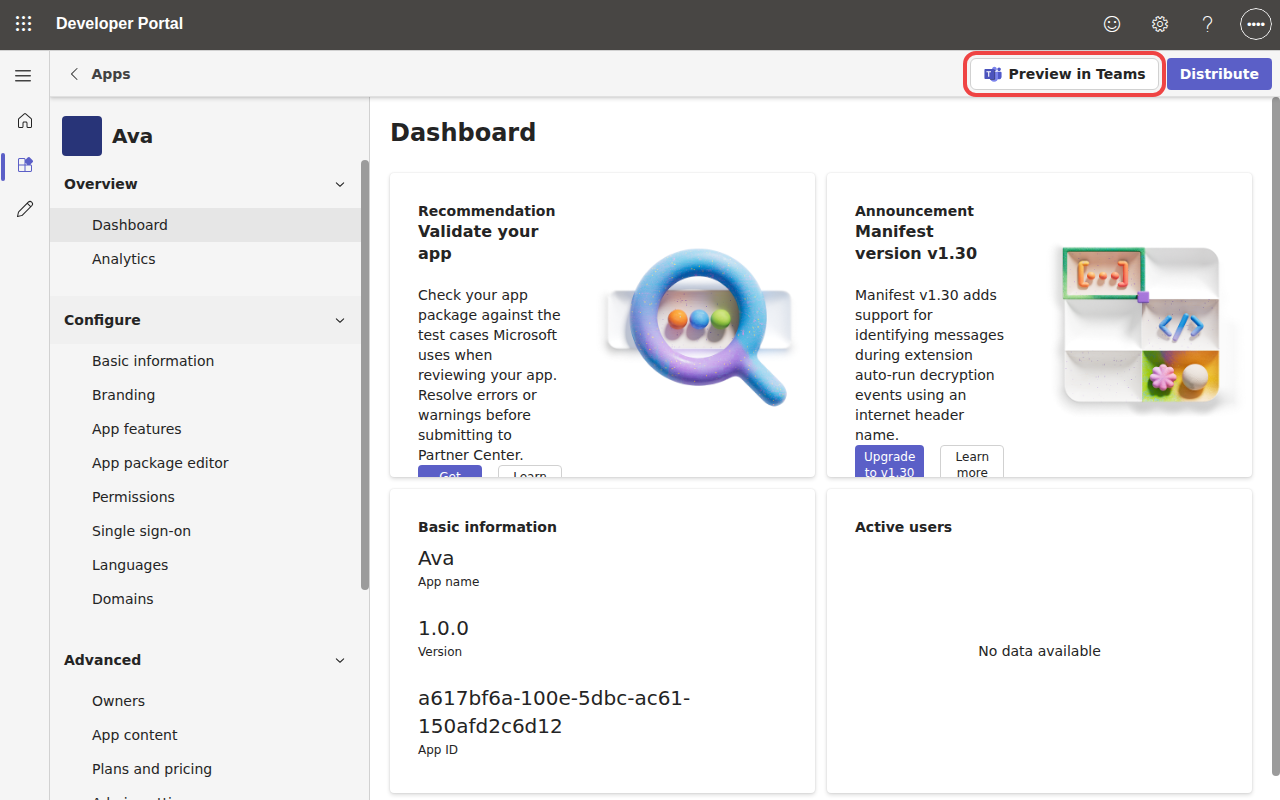
…then open the app and tap Preview in Teams > Add.
8. Say hello
The agent is now a contact in Teams. Message it 1:1, like a colleague.
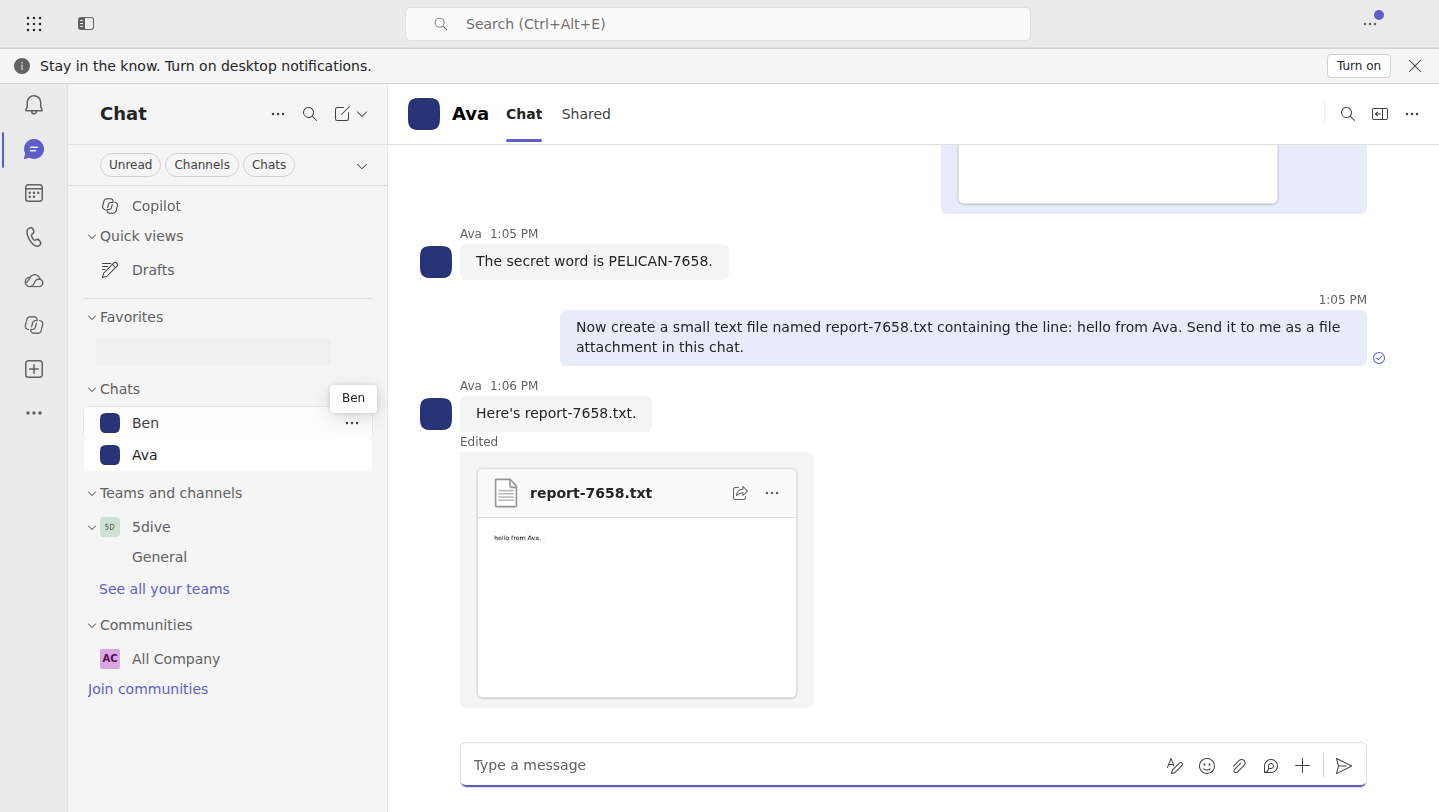
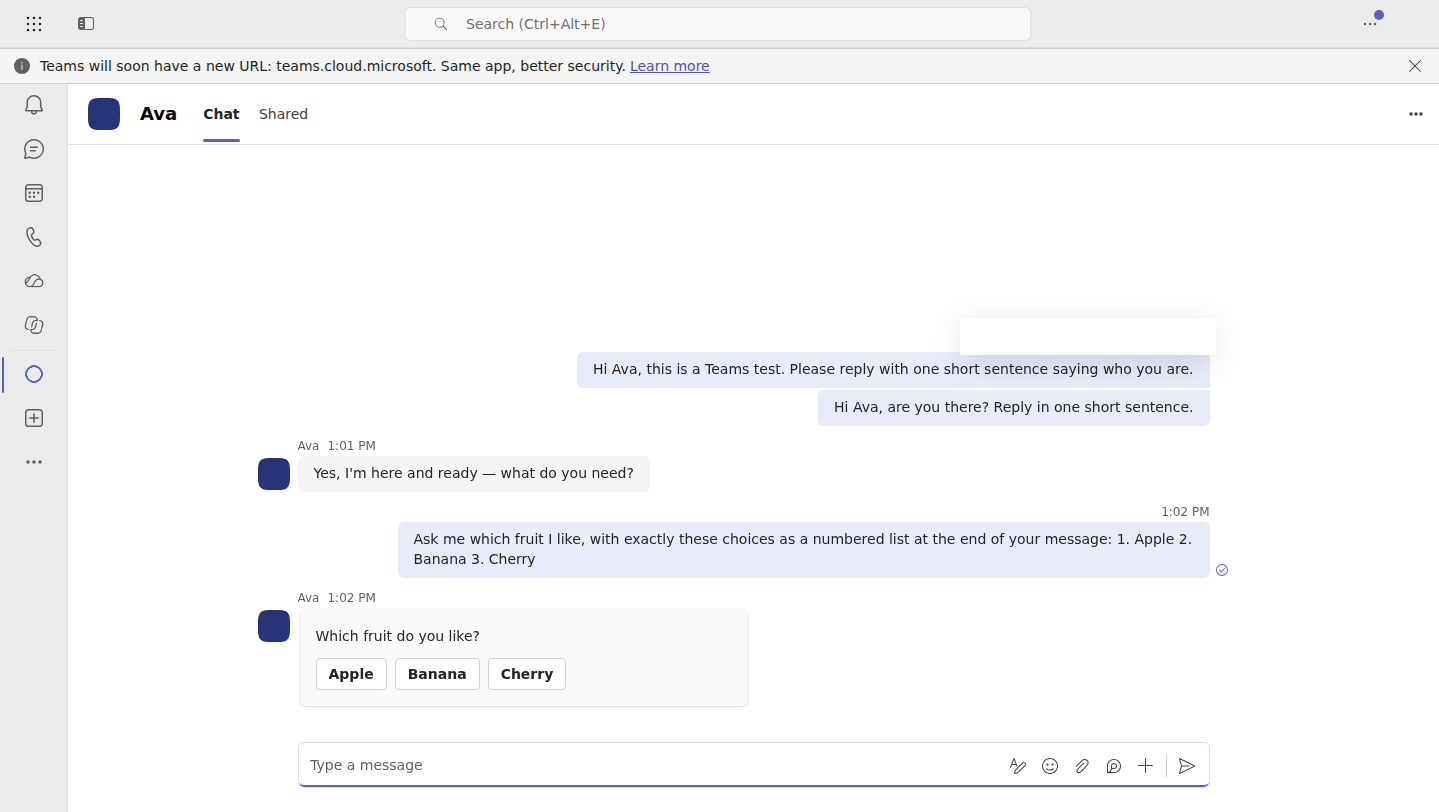
When it asks a question with set answers, people tap a button. Files go both ways (Teams asks to accept a file first). Group chats and channels are not supported yet.
Check and turn off
5dive agent teams status <agent>             # connected, reachable, last message
sudo 5dive agent teams disconnect <agent>    # turn it off and delete the password
After a disconnect, remove the app in the Teams admin center and delete the bot’s client secret. If your company uses Claude Team or Enterprise, an admin must allow channels for the Claude organisation, or the agent will not get Teams messages.