5dive Enterprise
See it, step by step
One real run of 5dive Enterprise, from buying to your staff at work.
- 1
You
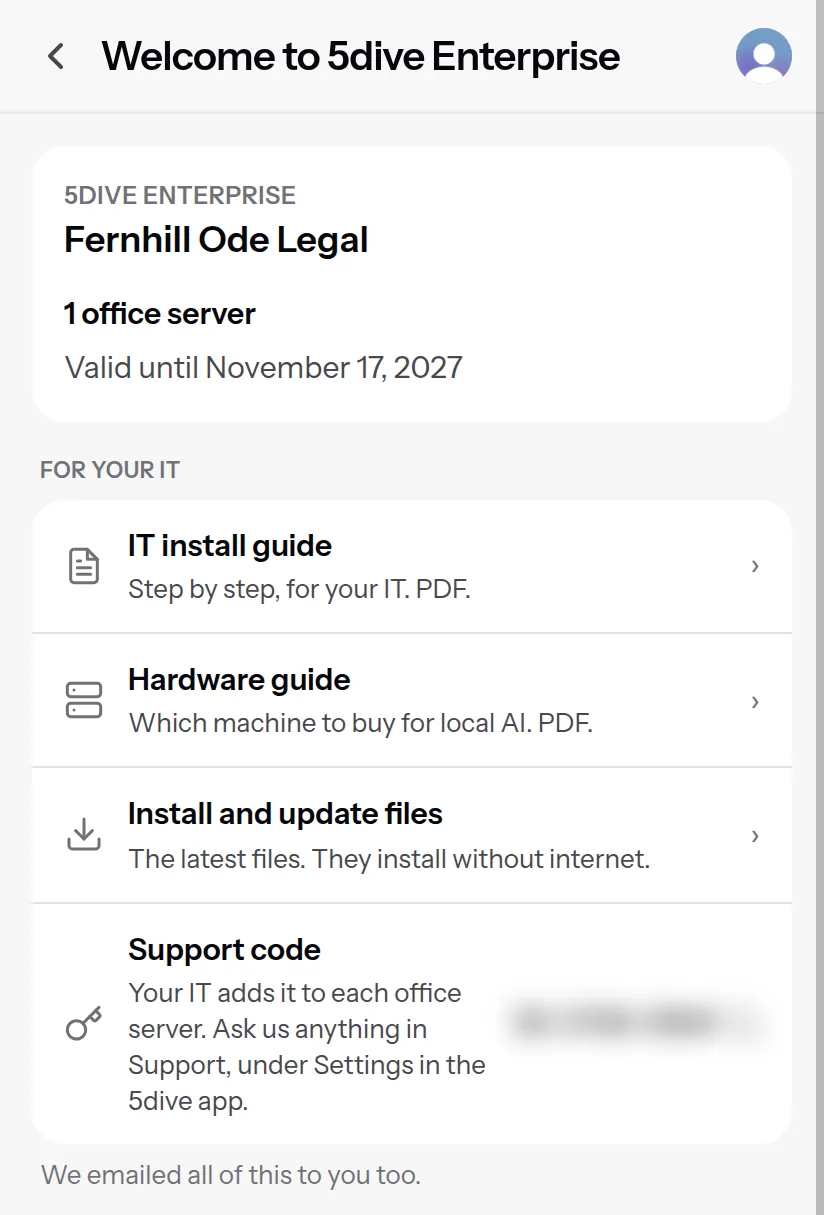
You buy. One page gives your IT the guide, the files and your support code.
- 2
IT
Your IT installs 5dive on your office server, following the guide.
- 3
IT
Connect your AI: a local AI on your network, or your firm's Claude account.
- 4
IT
Optional: switch the internet off. The office chat keeps working.
- 5
IT
The office chat runs on your firm's own web address.
- 6
Staff
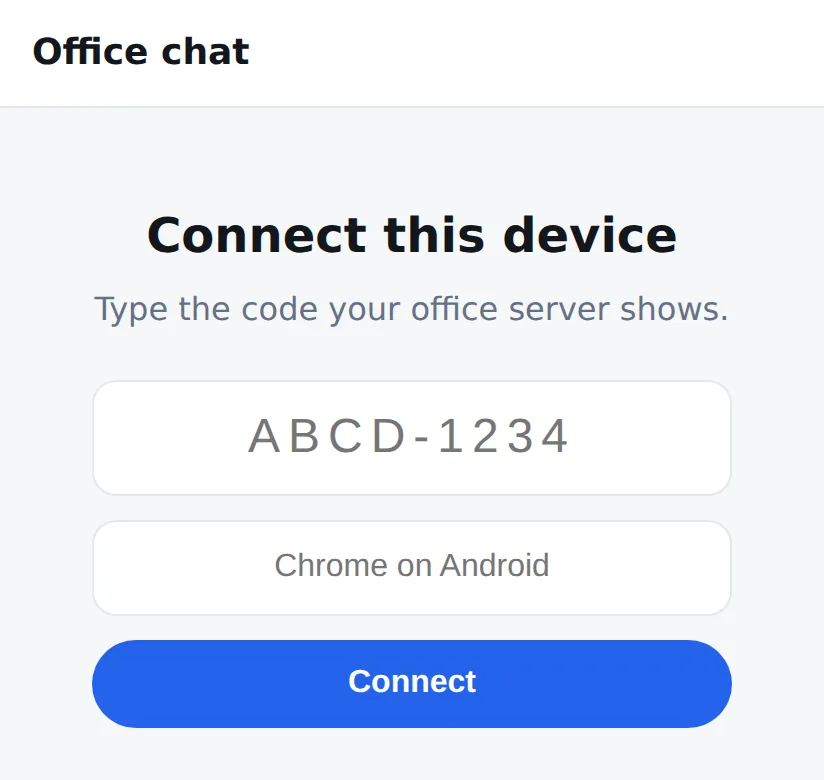
Each phone or laptop connects once, with a one-time code from IT.
- 7
IT
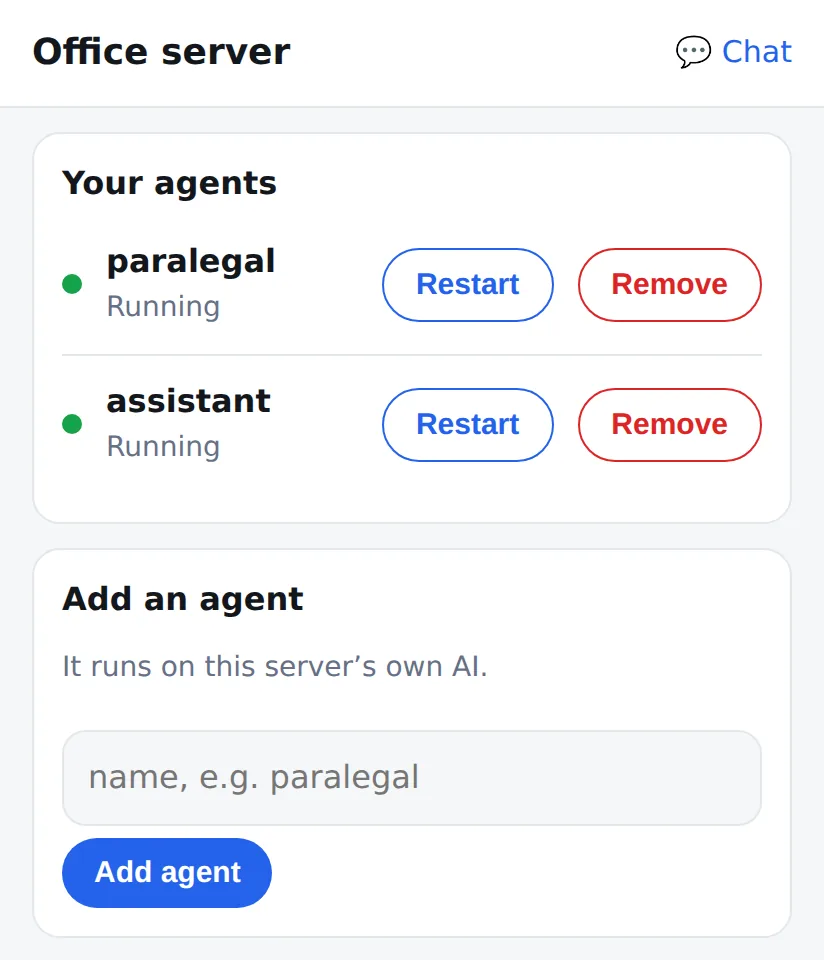
A new server starts empty. IT adds the first AI employee in the control panel.
- 8
Staff
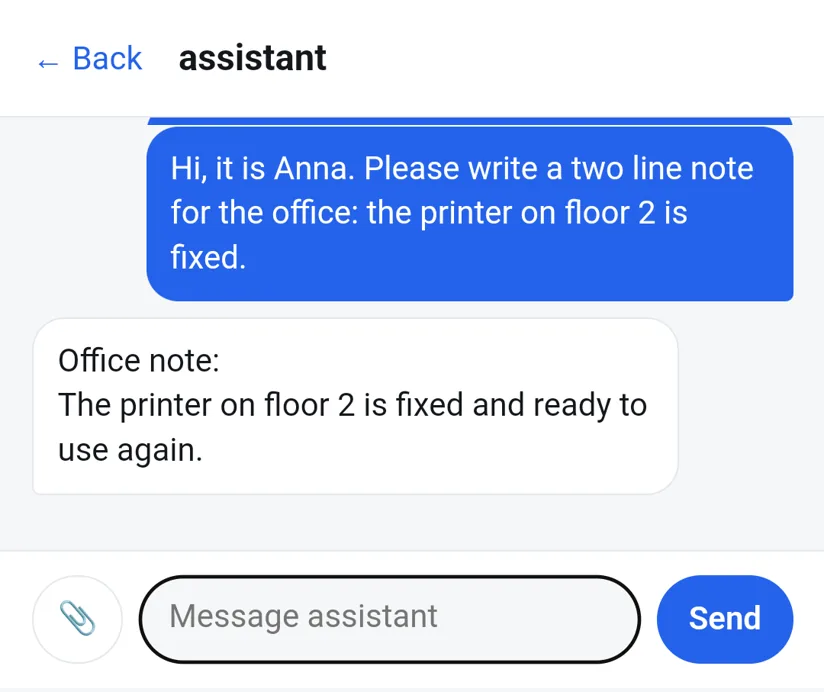
Staff ask on their phone. Here, Anna gets a note for the office.
- 9
IT
Updates come as one file on a USB stick. No internet needed.
Your IT gets the exact steps with your purchase.